How to get 1 billion US views on TikTok & Instagram
Before building UGC Pulse and Fast Pulse, we spent three years building consumer apps from India for a global audience.
About two years ago, we realised that if we wanted to grow our consumer apps in the US, we needed to crack TikTok.
TikTok is banned in India and these platforms are also push geo-specifc content.
To run Tiktok & Instagram accounts in the US that would target US audiences, We tried almost every method out there:
- Account farms
- Renting phones
- Cloud phones
- AWS instances
- Different VPN and proxy setups
Most of these approaches either didn’t work or weren’t reliable over the longer term.
The approaches that worked best for us involved either having a real person in the US manage the account or setting up a dedicated device with a consistent US network environment.
This guide covers the latter.
If you’re running a US GTM from India or another non-US location, this is useful for building:
- AI UGC accounts
- Faceless content channels
- Brand accounts for consumer apps
- Creator-style accounts for app distribution
The objective is to set up a dedicated device and network environment for managing US-oriented social accounts.
Dont forget to check out ugcpulse for ugc intelligence and fastpulse for ai ugc :)
Let’s get into it.
Part 1: Setting Up the Phone
Step 1: Get an iPhone
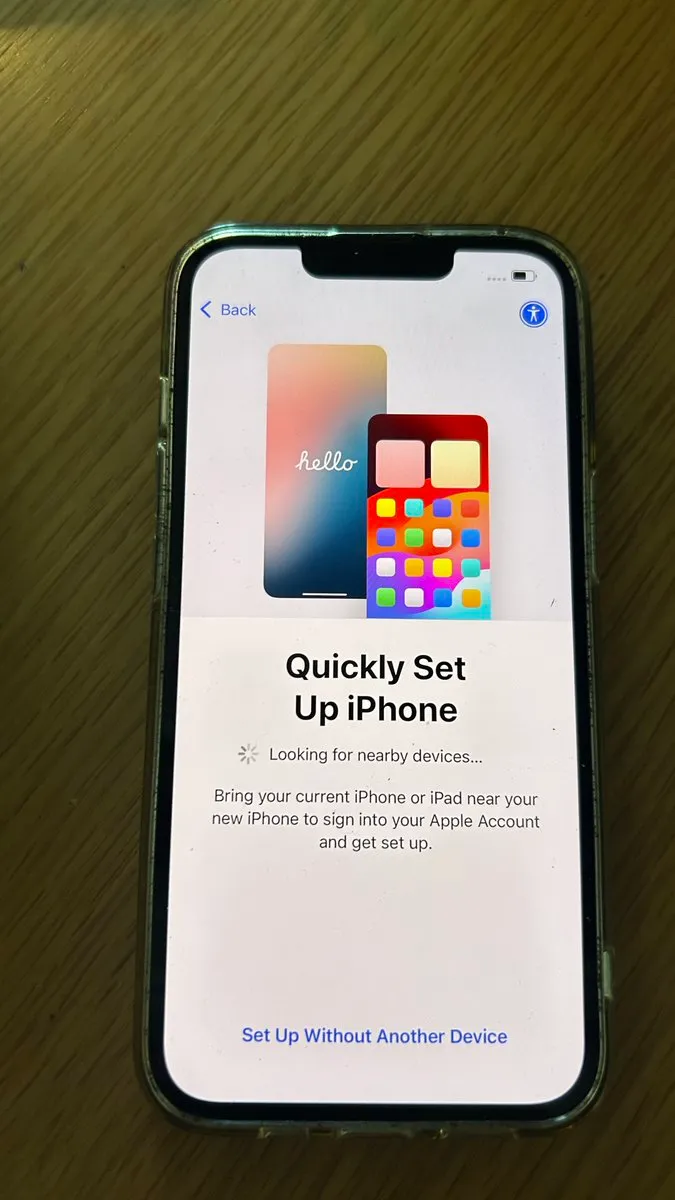
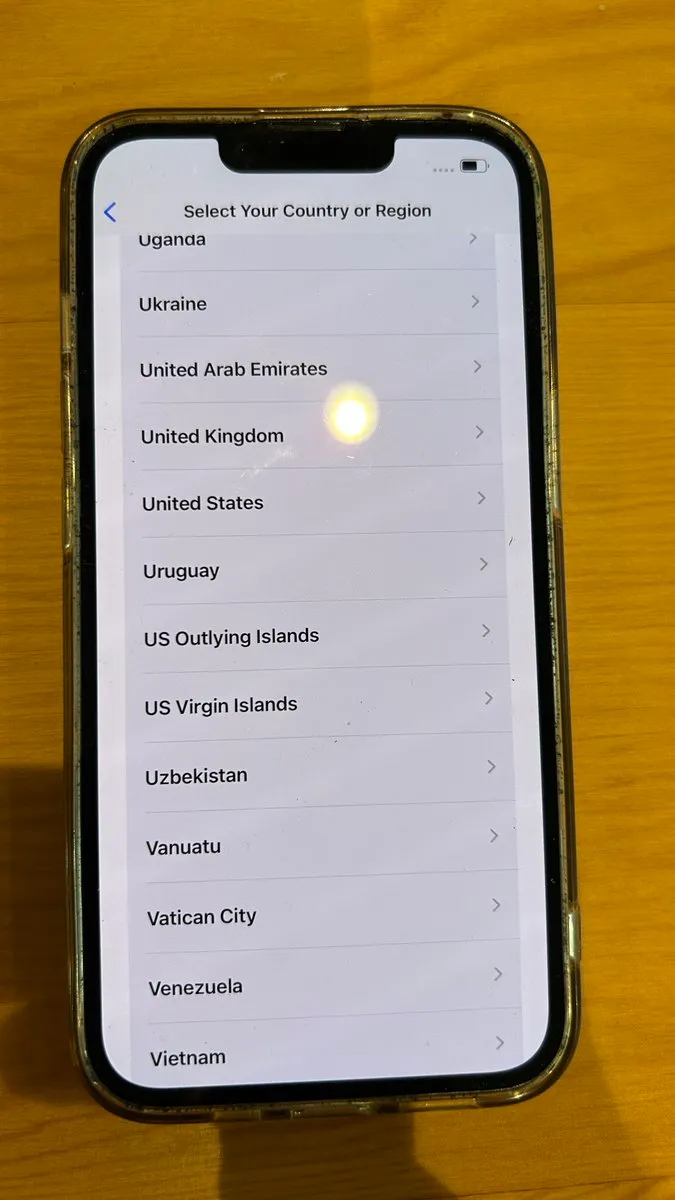
Get an old iPhone and factory reset it.
An iPhone X or later works for this setup. (should cost you b/w $120-$150)
Step 2: Set Up the iPhone
During the initial setup, configure the following:
- Language: English
- Country & Region: United States
- Setup: Set Up Without Another Device
- Wi-Fi: Connect
- Age Range: Adult
- Face ID: Set Up Later
- Passcode: Set a passcode
- Data Transfer: Don’t transfer anything
- Location Services: Disable
- Cellular Setup: Set Up Later
- Apple Pay: Set Up Later
- Screen Time: Set Up Later
- Analytics: Don’t Set Up
- Siri: Set Up Later
Apple ID
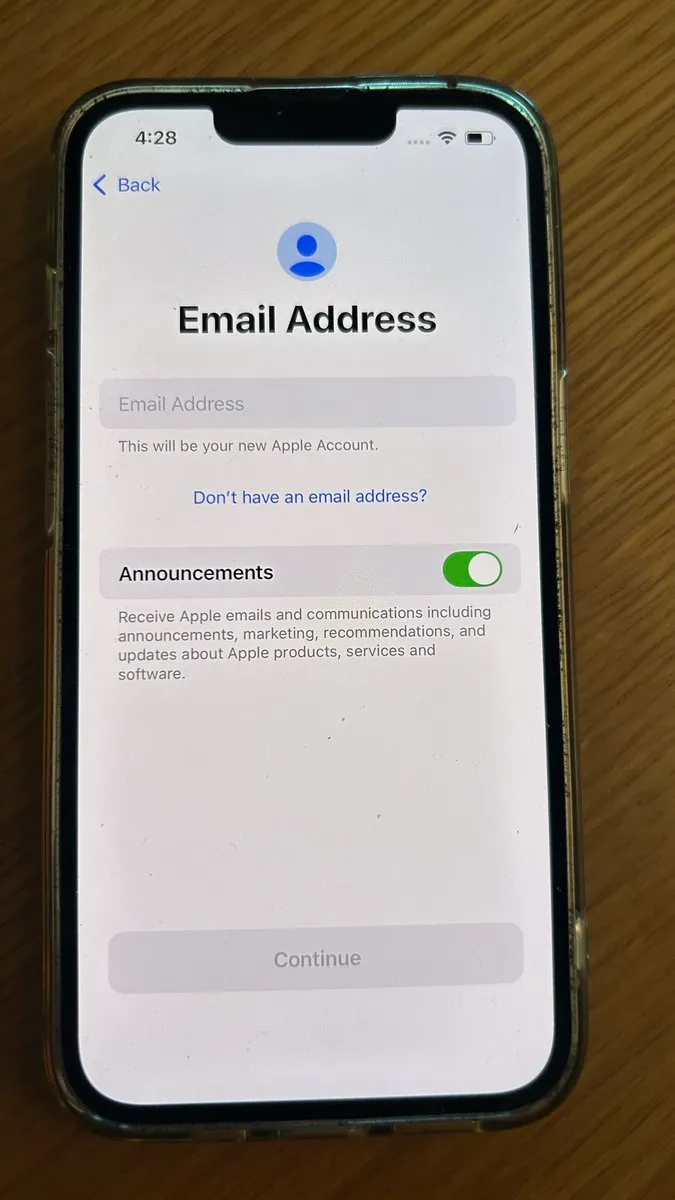
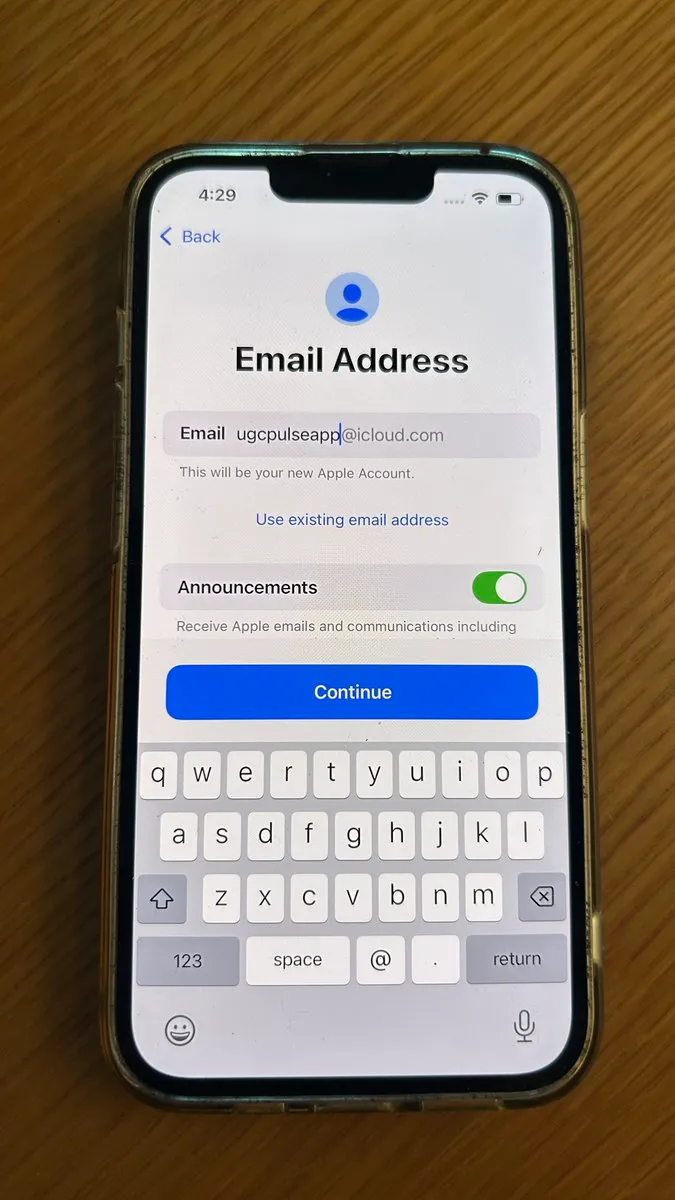
- Create a new Apple ID for the device.
- You can create a free Apple ID and use an iCloud email address.
- Keep the Apple ID dedicated to this device.
Phone Number Verification
- Use TexTverified (Get New SMS Verification Credits for Apple)
- Verify Phone Number
Once complete, your iPhone will be configured with the US as its selected region.
Part 2: Setting Up the Proxy
The objective is to establish a consistent US network connection.
A proxy routes your internet traffic through another server. Websites and apps may see the proxy’s IP address instead of your local IP address.
Step 3: Install Happ
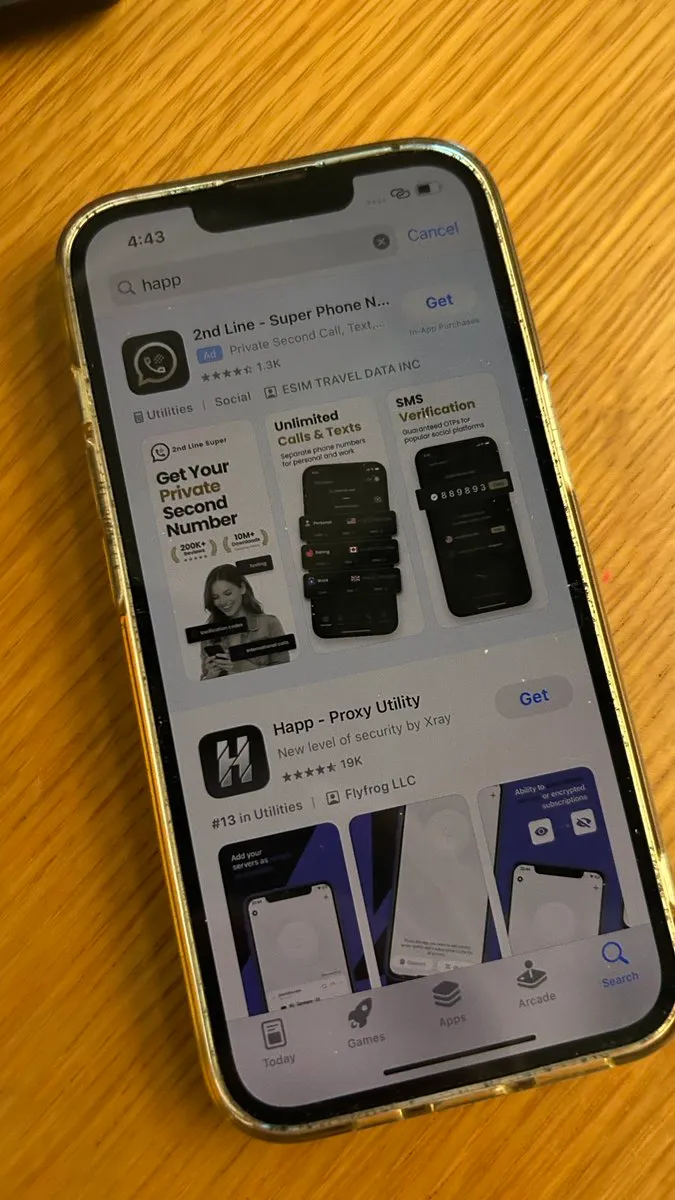
- Open the App Store.
- Search for “Happ”.
- Download and install Happ – Proxy Utility.
We’ll use Happ to configure the proxy on the iPhone.
Step 4: Get a Dedicated ISP Proxy
We use Decodo.
- Go to https://decodo.com/
- Purchase a Dedicated ISP Proxy.
- Select a US location.
- Get a 3-IP pack or more, depending on your requirements.
Why Dedicated ISP Proxies?
There are different types of proxies:
- Datacenter proxies: IPs associated with hosting providers.
- Residential proxies: IPs associated with residential internet connections.
- ISP proxies: IPs associated with internet service providers, often hosted on dedicated infrastructure.
We prefer dedicated ISP proxies because they provide a consistent IP address associated with an ISP.
The important thing is consistency. Avoid frequently changing your IP address or location.
Note: always avoid VPNs as they use Datacenter proxies which are easily flagged by tiktok/instagram
Step 5: Configure Decodo in Happ
This is the most tedious part of the setup.
- Open your Decodo dashboard.
- Note down the proxy details.
- Select the SOCKS protocol.
- Open Happ.
- Go to Manual Input.
- Enter the proxy details:
Server/Host
Port
Username
Password
Protocol
Double-check every field.
An incorrect configuration can prevent your phone from connecting to the internet while the proxy is enabled.
Once configured, connect through Happ and verify that your internet works. Browse any site on safari to check the same.
Step 6: Verify GEO and ASN
Don’t assume your proxy is working as expected just because you’ve connected to it.
You need to verify two things.
GEO
- GEO refers to the geographic location associated with your IP address.
- For example, if you’re using a Chicago proxy, your IP should resolve to Chicago or the expected surrounding region.
ASN
- ASN stands for Autonomous System Number. It identifies the network your IP address belongs to.
- This can help you understand whether your IP is associated with an ISP or a hosting provider.
Use these tools:
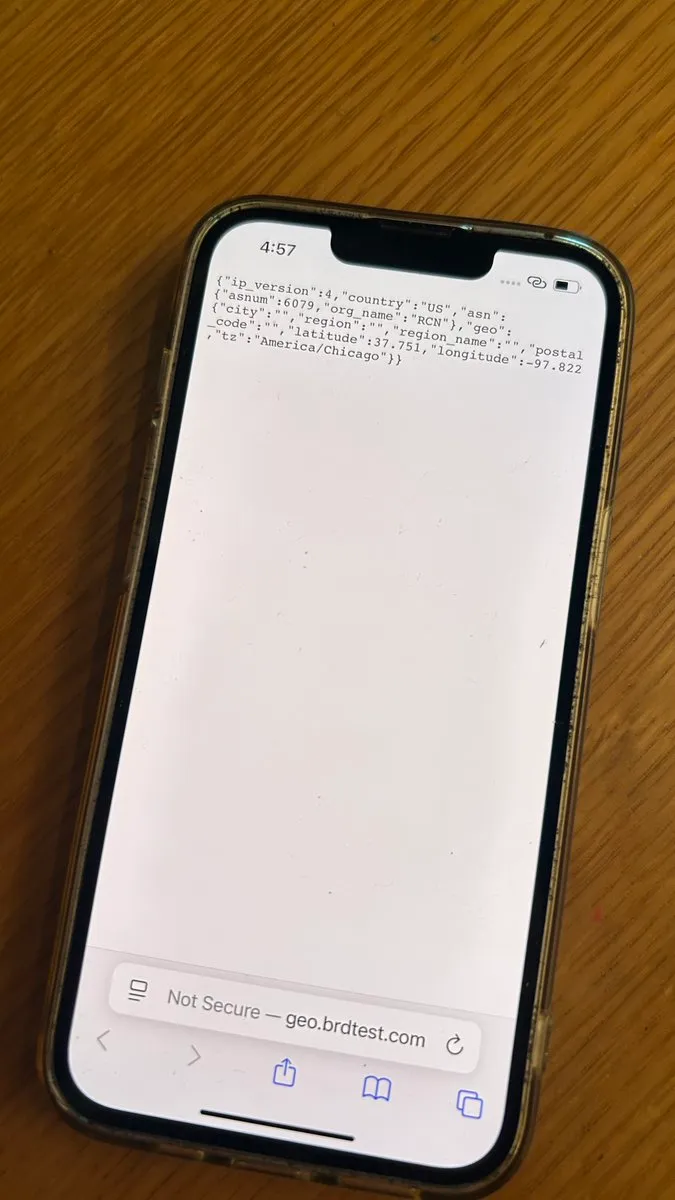
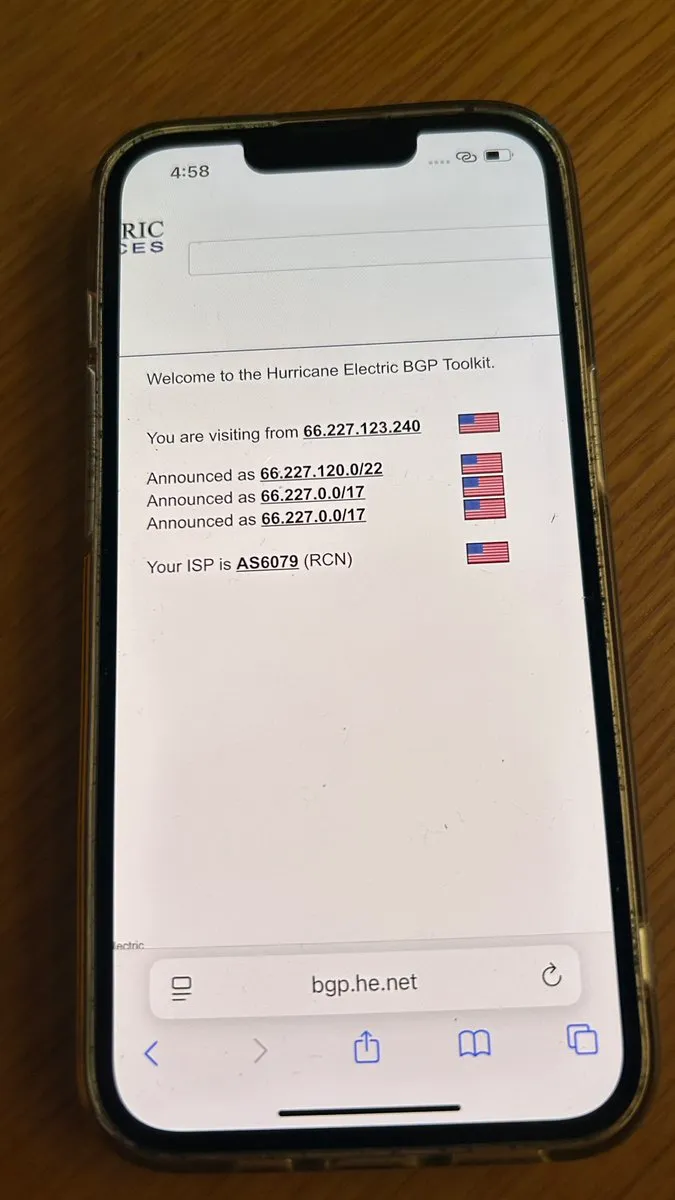
- GEO + ASN: https://geo.brdtest.com/mygeo.json
- ASN lookup: https://bgp.he.net/
Check that the IP, location, and network information match your proxy configuration.
These checks verify network information. They do not guarantee how TikTok or Instagram will classify your account.
Step 7: Set the Time Zone
- Set the phone’s time zone to match your selected proxy location.
- For example, if your proxy is in Chicago:
- Settings → General → Date & Time → Time Zone → Chicago
Part 3: Installing TikTok
Step 8: Connect to Happ
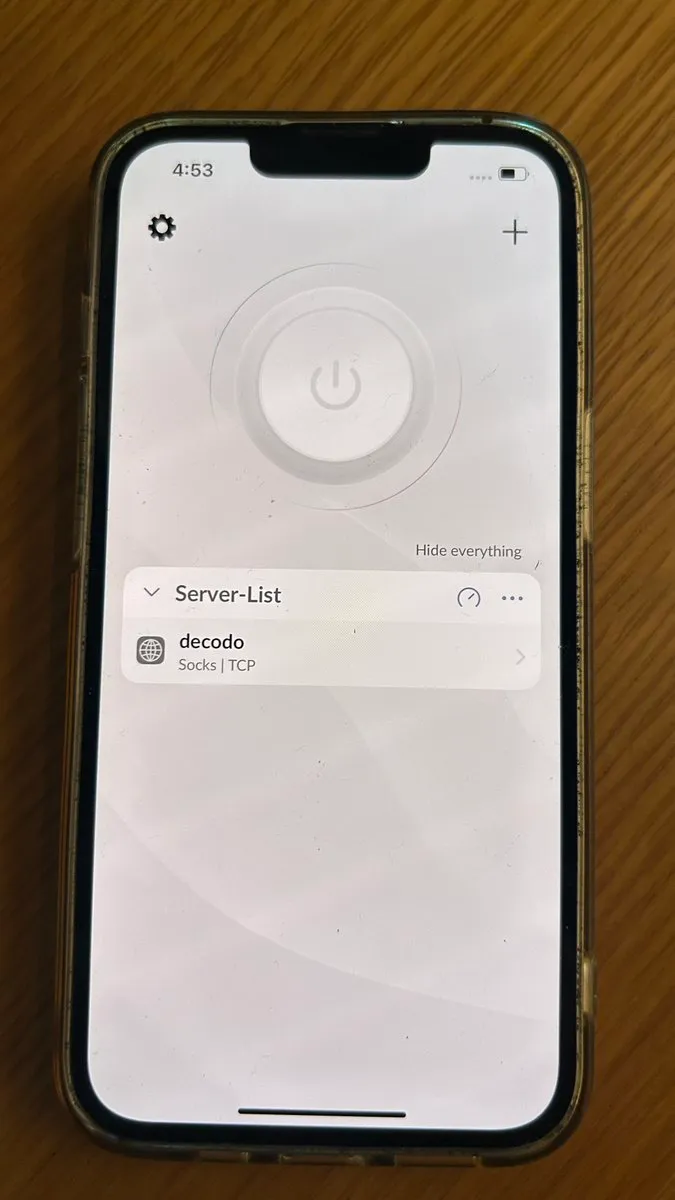
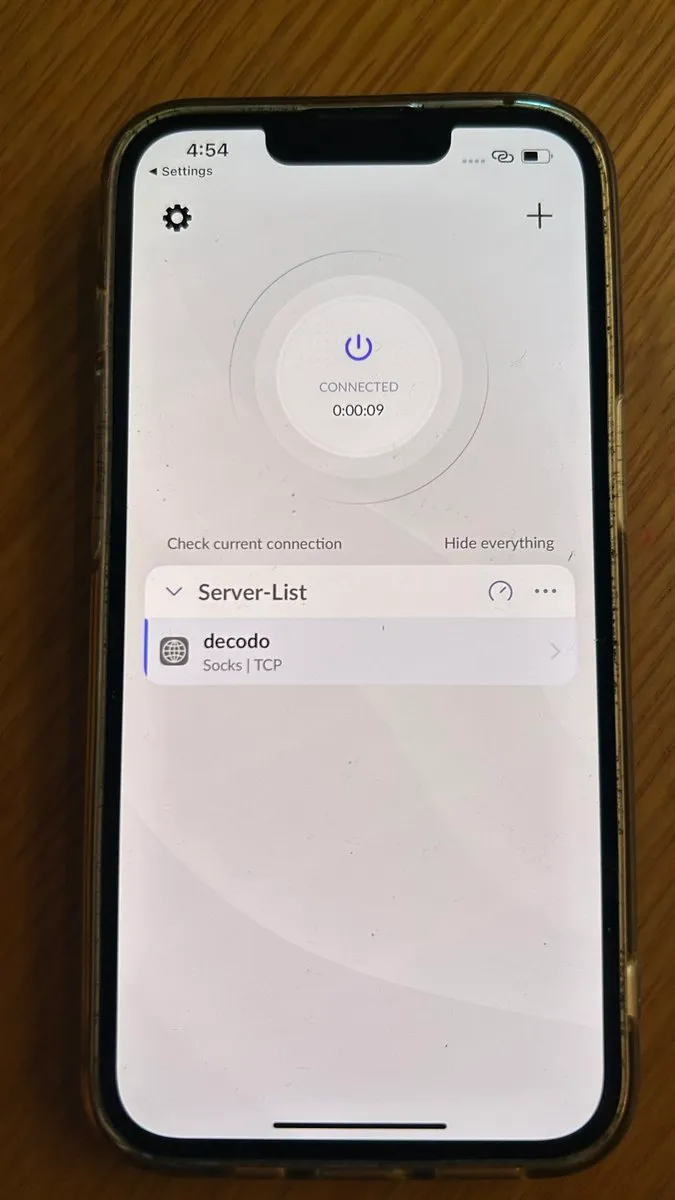
- Open Happ and enable your proxy connection.
- Verify that the internet is working.
Step 9: Install TikTok
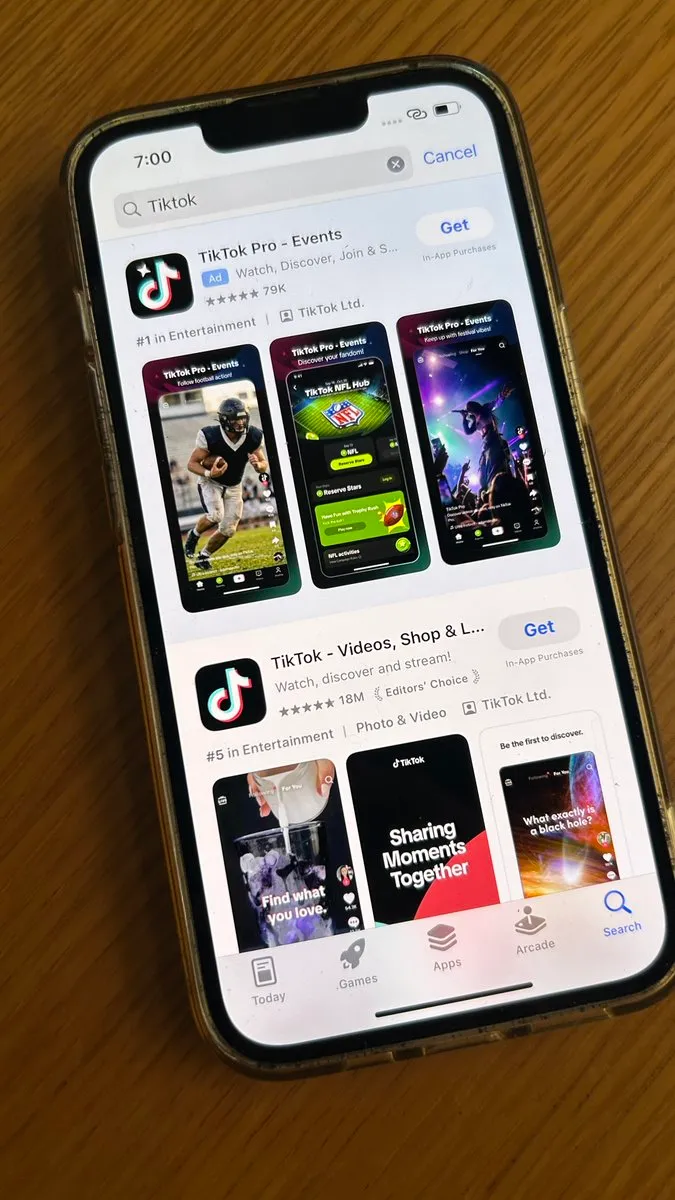
Open the App Store and download TikTok.
If TikTok isn’t available in your App Store, check your Apple Account’s country or region settings and the app’s availability in that region.
Step 10: Create Your Account
Open TikTok and create an account.
Our initial setup flow:
- Sign in with Apple, using Hide My Email if available.
- Enter your date of birth.
- Create your name.
- Disable notifications.
- Skip interests during onboarding.
Once complete, you should be able to access TikTok.
The feed you receive depends on multiple signals, including your device, network, account activity, and the content you interact with.
You should ideally see a USish feed now.
Part 4: Account Maintenance
Once you’ve configured your device and network, avoid unnecessary changes.
A few things we follow:
- Don’t frequently change your proxy IP or location.
- Avoid using TikTok while your proxy is disconnected if you’re trying to maintain a consistent network environment.
- Disable Background App Refresh for TikTok.
- Close TikTok when you’re not actively using it.
- Avoid logging into the same account from multiple devices and locations.
- Keep your device and account credentials secure.
To disable Background App Refresh: Settings → General → Apps → Background App Refresh > Disable
Part 5: Warming Up & Posting
Once your account is configured, establish normal account activity before scaling your posting.
Don’t immediately start uploading dozens of videos.
Spend time using the platform, exploring content in your niche, and understanding what your target audience engages with.
Understanding Initial Views
Here’s a rough framework based on our experience with new accounts. if you consistently get views in these buckets, it does suggest something
- Below 300 views: Reach is limited/throttled by Tiktok (Account is likely in Jail/Shadowbanned)
- 300–500 views: Inconclusive.
- 500–800 views: Healthy Account.
- 1,000+ views: Stronger initial reach.
That’s all - lets go get those billion views!
If you’re building a consumer app and targeting the US from India, TikTok and Instagram are worth figuring out.
I hope this guide helps you get started and gets you a few million views.
Once you set up your account, the best way to go viral is to learn from the market. I recommend UGC Pulse for marker research and FastPulse for cheap AI UGC creation at scale.
If you’re working on high-volume UGC, creator UGC, US GTM, or distribution, my DMs are open.
Happy TikTok farming :))